Help for iPad

If you're using an iPad, you're most likely using the Safari browser. Navigate to www.jamiesamoyed.com and this is what you'll see:
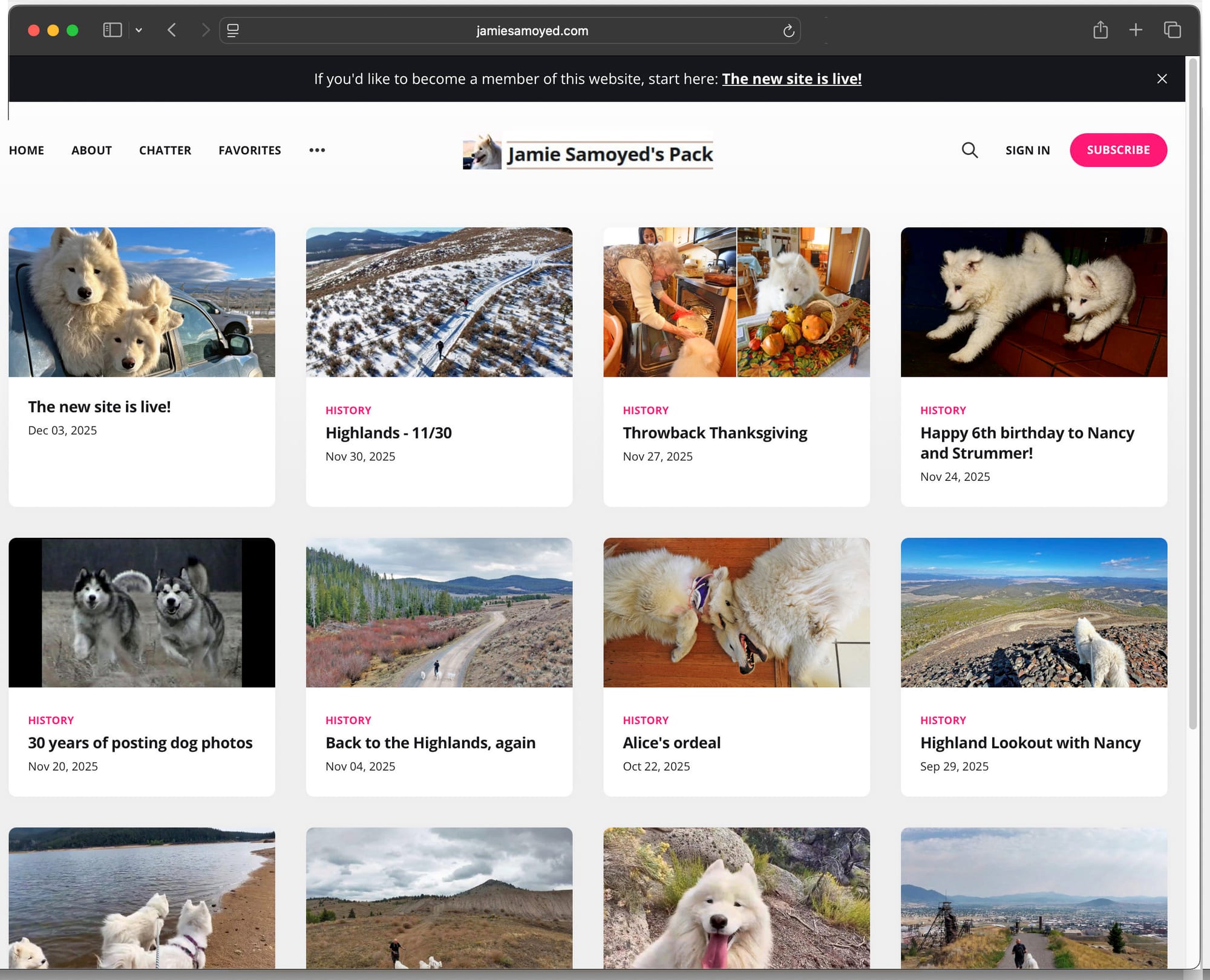
From this page, you can either click the link in the black banner at the top of the screen (The new site is live!) to learn a little about the site before signing up, or if you'd just like to sign up right away click the pink Subscribe button.
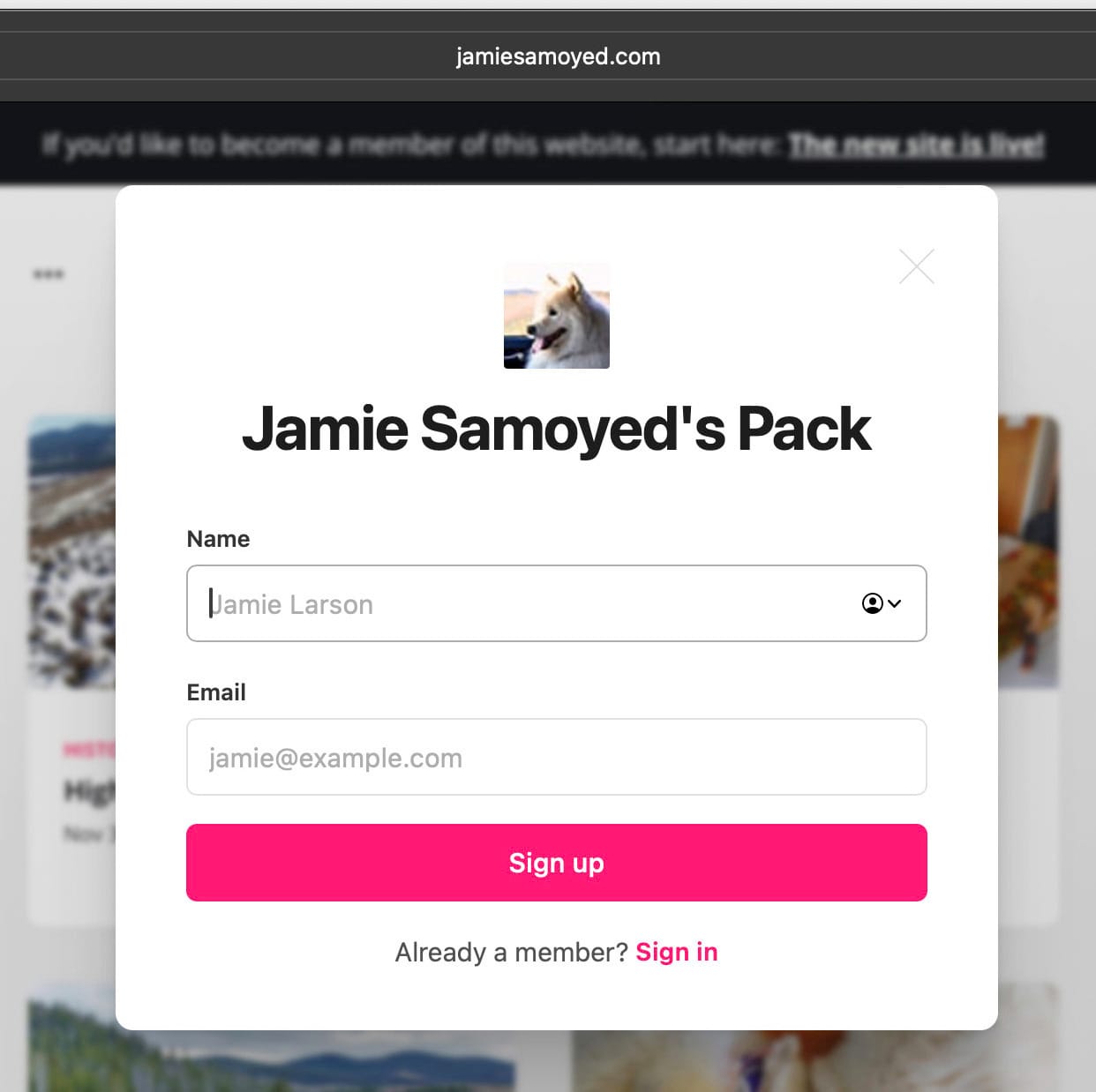
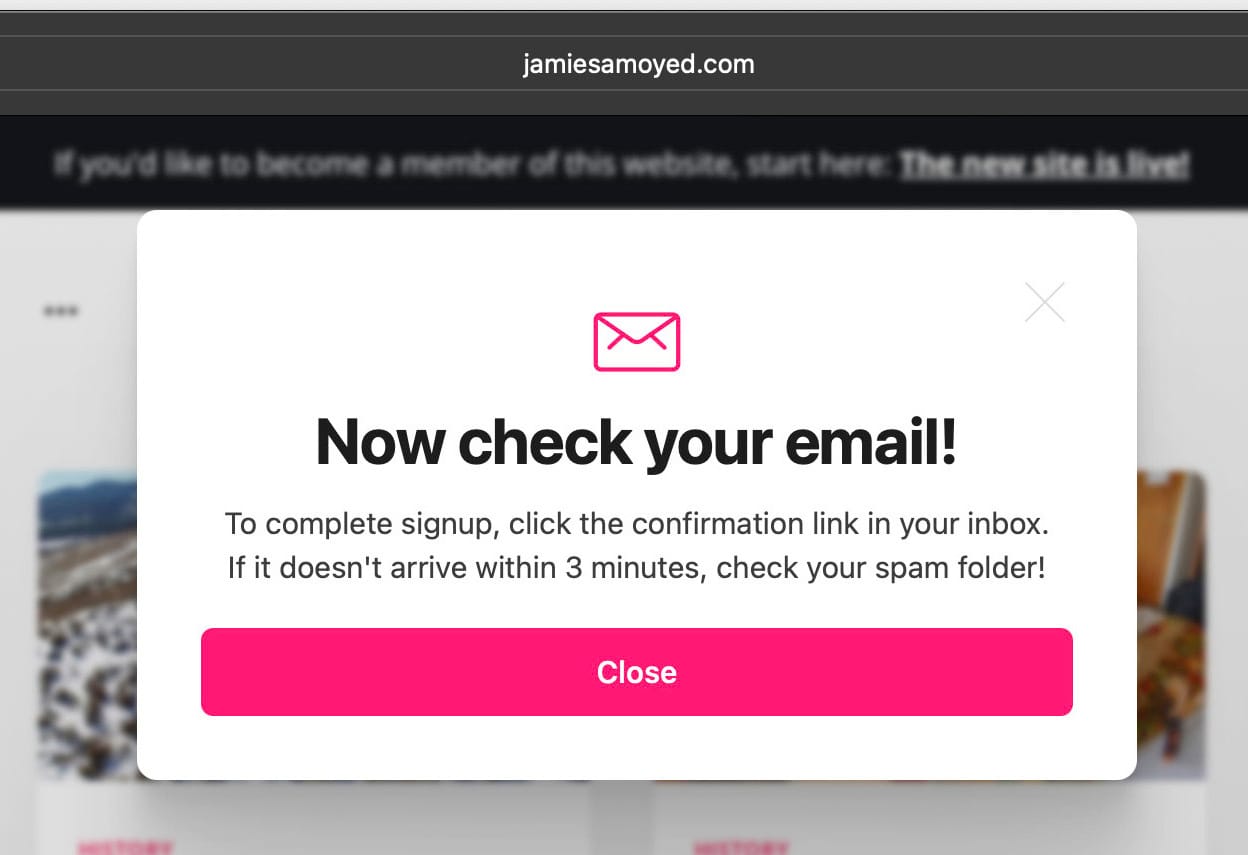
Enter your name and email address,then check your email.
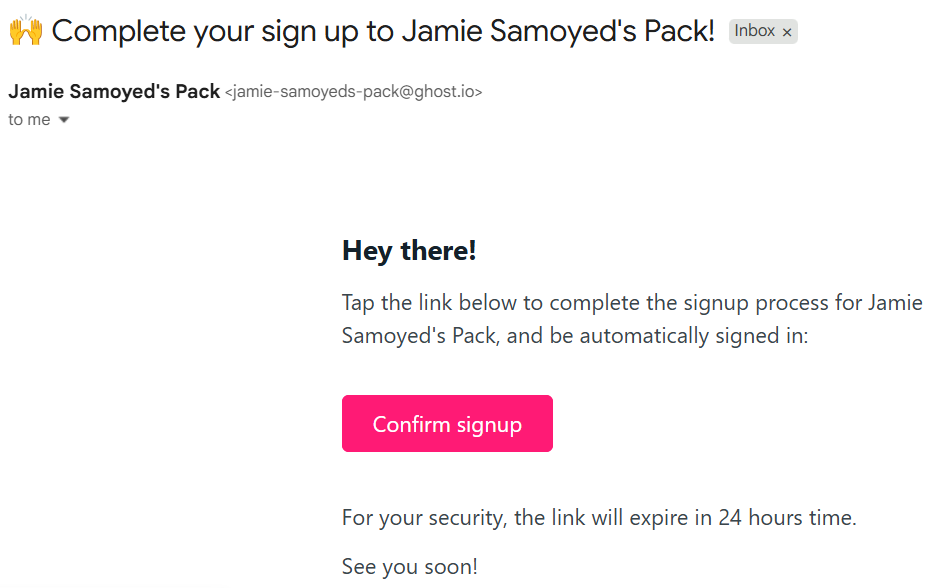
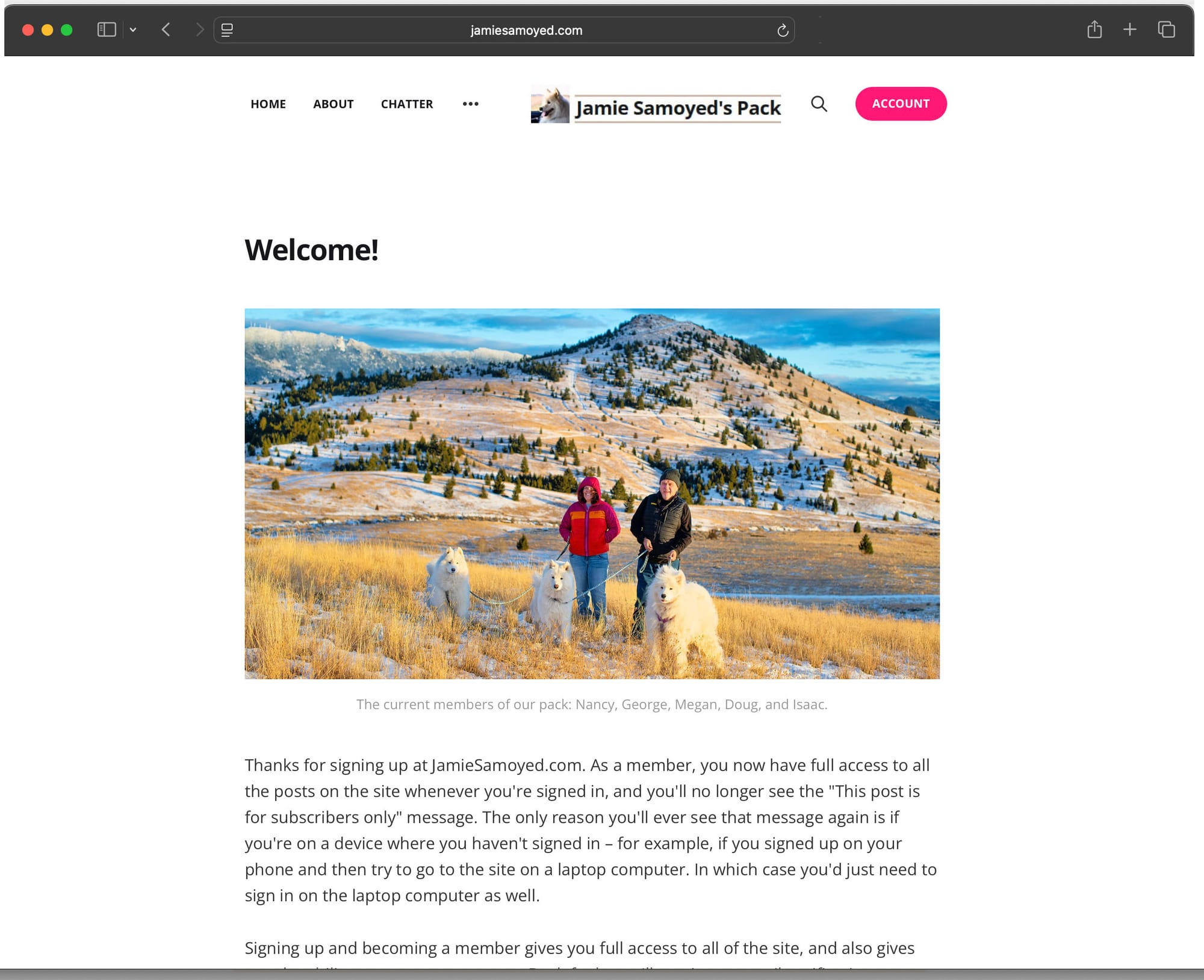
Once you're signed up, you'll be able to view all of the content on the site.
Creating a shortcut
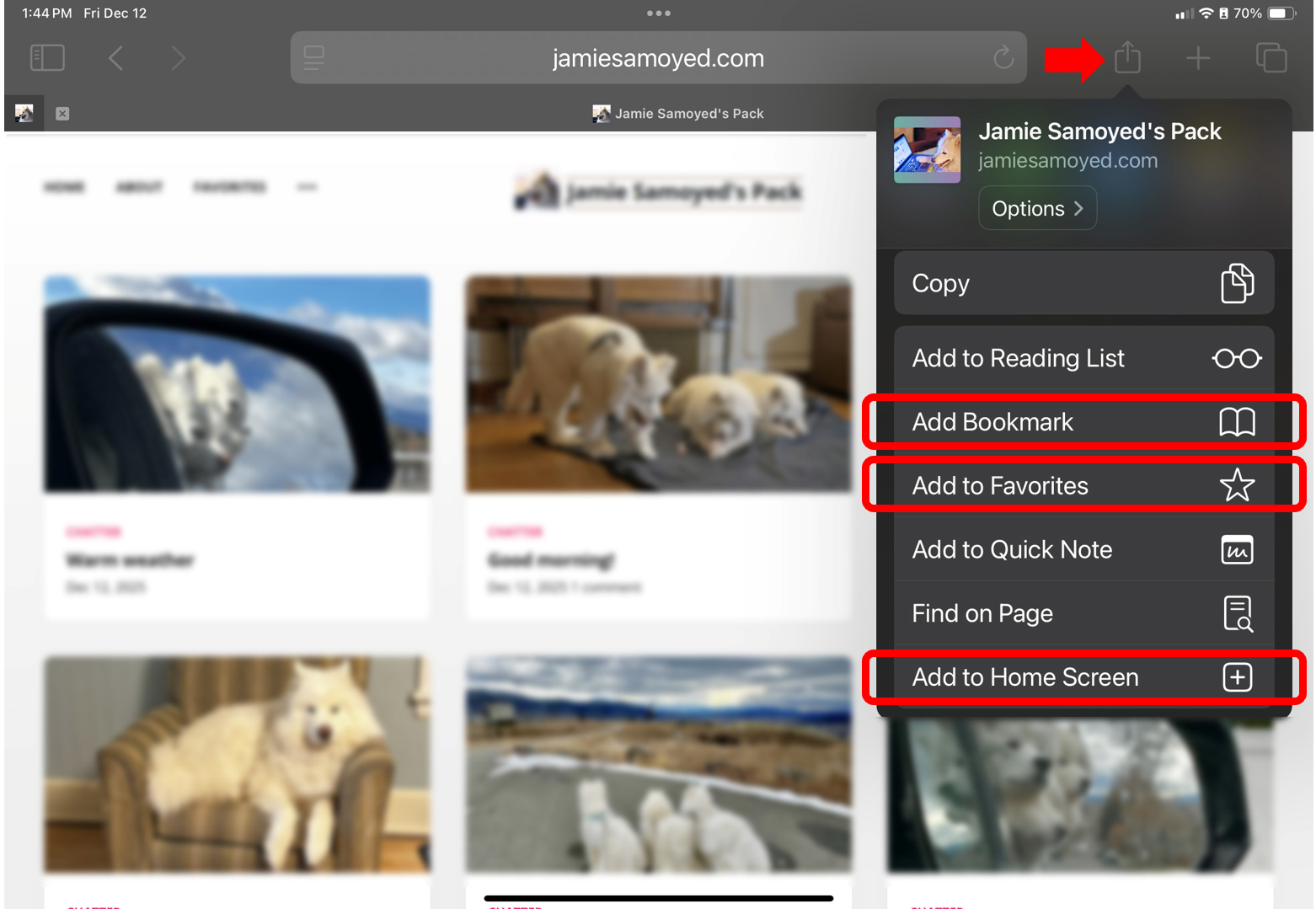
Any time you want to see what's new with Jamie's pack, you just need to visit JamieSamoyed.com and the latest posts will be at the top of the page. To make this process as quick and simple as possible, you may want to create a shortcut that will take you to JamieSamoyed.com, so that you don't have to type that web address each time you visit the site.
In the iPad, you have several options: you can add JamieSamoyed.com to your Bookmarks, add it to Favorites, or create a shortcut on the Home Screen.