Help for Windows computers
If you're using a Windows computer to access this web site, you're mostly likely using a Chrome browser, so that's what we'll cover below. If you're using a less common browser such as Edge or Opera, similar concepts apply but the exact details may vary.
Creating a shortcut
Any time you want to see what's new with Jamie's pack, you just need to visit JamieSamoyed.com and the latest posts will be at the top of the page. To make this process as quick and simple as possible, you may want to create a shortcut that will take you to JamieSamoyed.com, so that you don't have to type that web address each time you visit the site.
To create a Desktop icon shortcut to JamieSamoyed.com, follow these steps:
- Open your browser and go to www.jamiesamoyed.com.
- Make sure that your browser window doesn't cover the entire Desktop. An easy way to do this is to press Windows + right arrow, which will make your browser cover the right half of the screen.
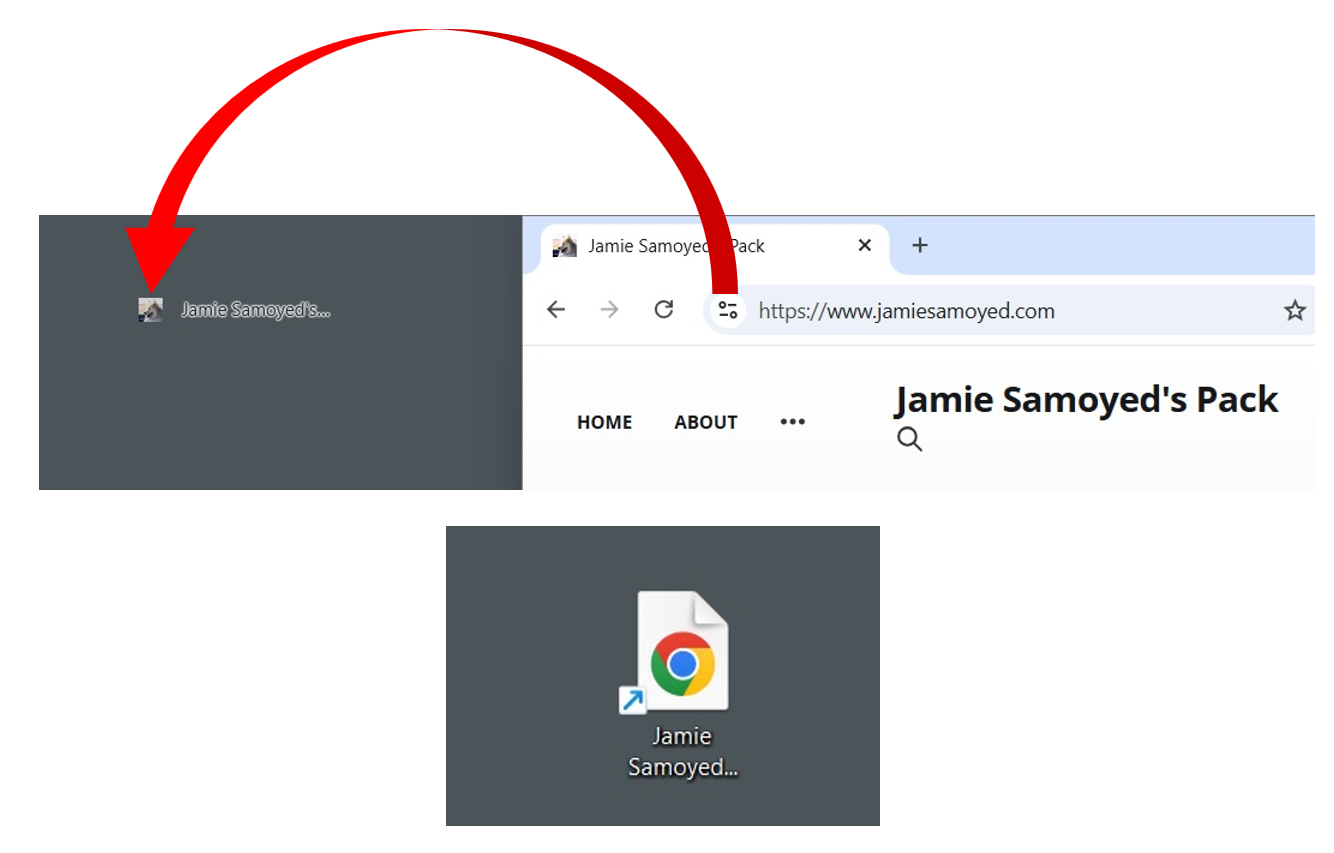
- Click and hold the small circle to the left of the URL (where it says https://www.jamiesamoyed.com/), then drag it onto the Desktop and release the mouse button.
- This will create a Desktop shortcut labeled Jamie Samoyed's Pack. You can double-click on it at any time to go to the site.
To create a Bookmarks bar shortcut for JamieSamoyed.com, follow these steps:
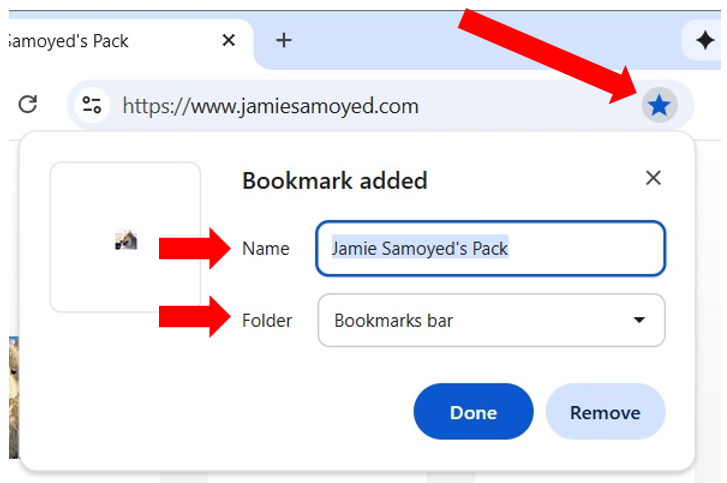
- Click the star to the right of the URL.
- The Bookmark Added window will appear. Here you can edit the name of the bookmark and/or selected a folder for it. If you select the folder Bookmarks bar, then the bookmark will appear on your bookmarks bar.
- Click on the bookmark on the Bookmarks bar to return to the site at any time.
Using emojis in comments
If you're coming to this site from Facebook, one difference you'll see is that you can comment on posts, but there isn't a way to put a reaction on a post like you can on Facebook.
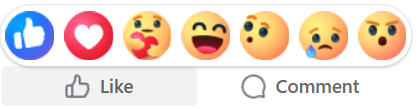
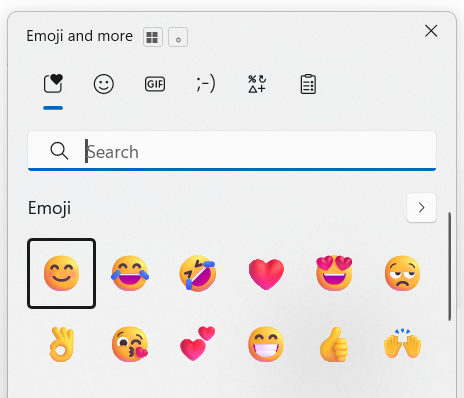
A comment can contain emojis, however, so you can add an emoji to a comment, or post a comment with just an emoji in it if you'd like.
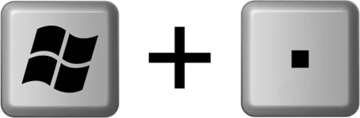
On Windows computers, there's a keyboard shortcut that you can use to type emojis: Windows key + period key.