Help for iPhone

When you use an iPhone with this site, you'll open the URL jamiesamoyed.com in a non-private window in the Safari browser. If you know what that means, go ahead and open the site, then you can skip the next section (Opening a non-private window) and proceed to Creating a home screen icon below.
If you need some help to assure that you're opening a non-private window, the next section is for you.
Opening a non-private window
Follow these steps to assure that you're opening the site in a non-private window:
- Open Safari.
- Click on the Tabs icon in the lower right corner – the two overlapping squares.
- On the second line up from the bottom of the screen, if the word Private is not in bold, you're ready to proceed. If it's in bold (Private), click on the phrase to the right (such as Start Page or xxx Tabs) and that should make the word Private no longer in bold.
- Click the + sign in the lower left corner of the screen. You should now have a white background for entering a web address.
- Type jamiesamoyed.com and press Enter.
If you open the site in a non-private window as outlined above, and then create a home screen icon as outlined below, you'll never have to think about this issue again. You'll just click on Jamie's smiling face on your home screen to get into the site, and you'll have instant access without needing to sign in again.
Creating a home screen icon
Any time you want to see what's new with Jamie's pack, you just need to visit JamieSamoyed.com and the latest posts will be at the top of the page. To make this process as quick and simple as possible, you may want to create a home screen icon that will take you to JamieSamoyed.com, so that you don't have to type that web address each time you visit the site.
Assuming you've opened jamiesamoyed.com in a non-private window as explained above, here's how to create a home screen icon for one-click access to the website:
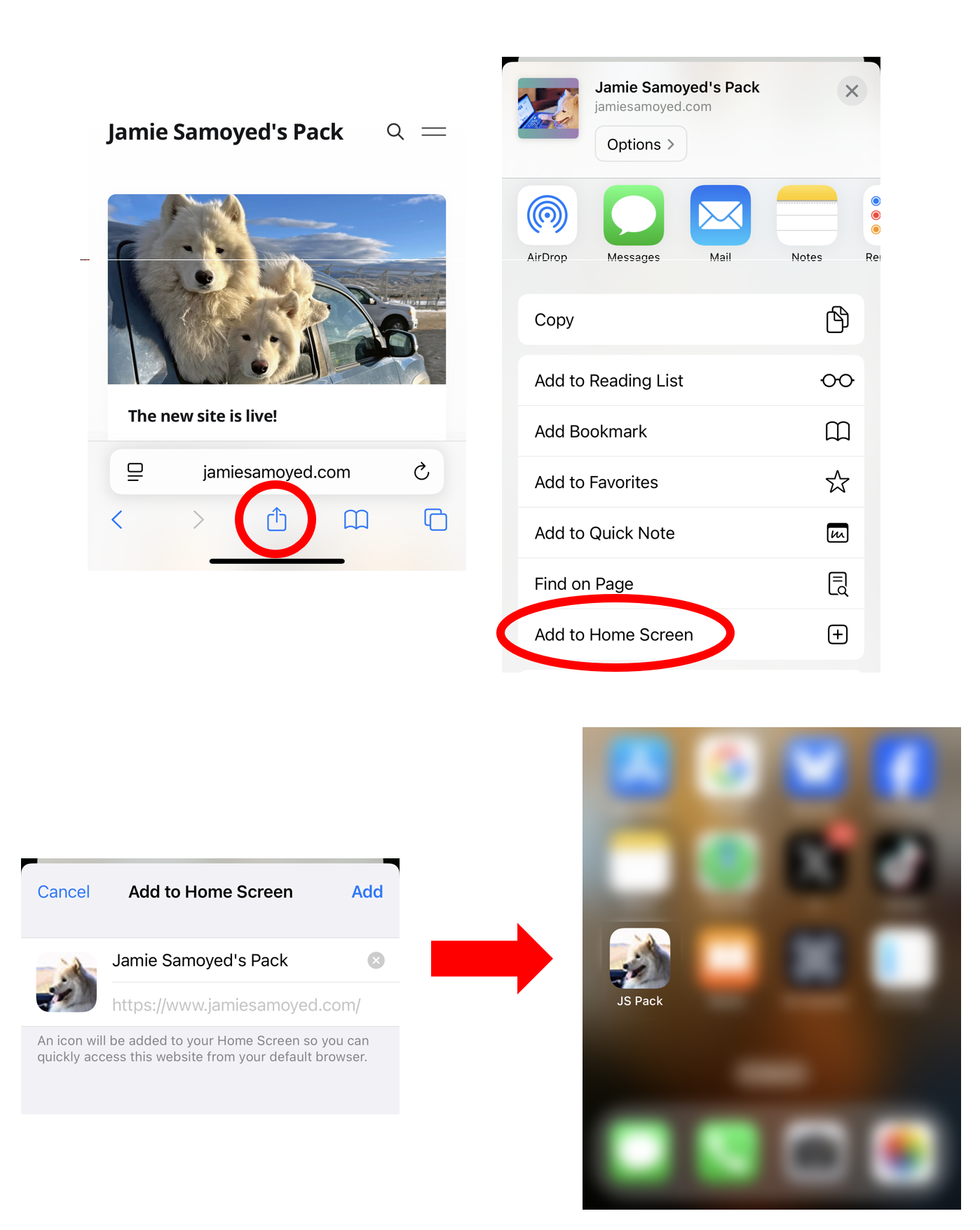
- Click on the Share icon in the center of the bottom of the screen. (The square outline with an arrow pointing up.)
- A popup will show some sharing options. Scroll up to find the Add to Home Screen option, and click on it.
- Note that you can edit the icon's name if you'd like. Jamie Samoyed's Pack is too long to display under an icon, so you may want to change it to Jamie or JS Pack.
- After typing any changes to the name, click Add in the upper right corner.
You'll now have a icon that takes you to the website.
Using emojis in comments
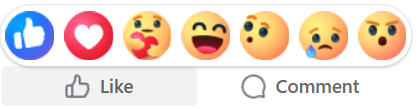
If you're coming to this site from Facebook, one difference you'll see is that you can comment on posts, but there isn't a way to put a reaction on a post like you can on Facebook.
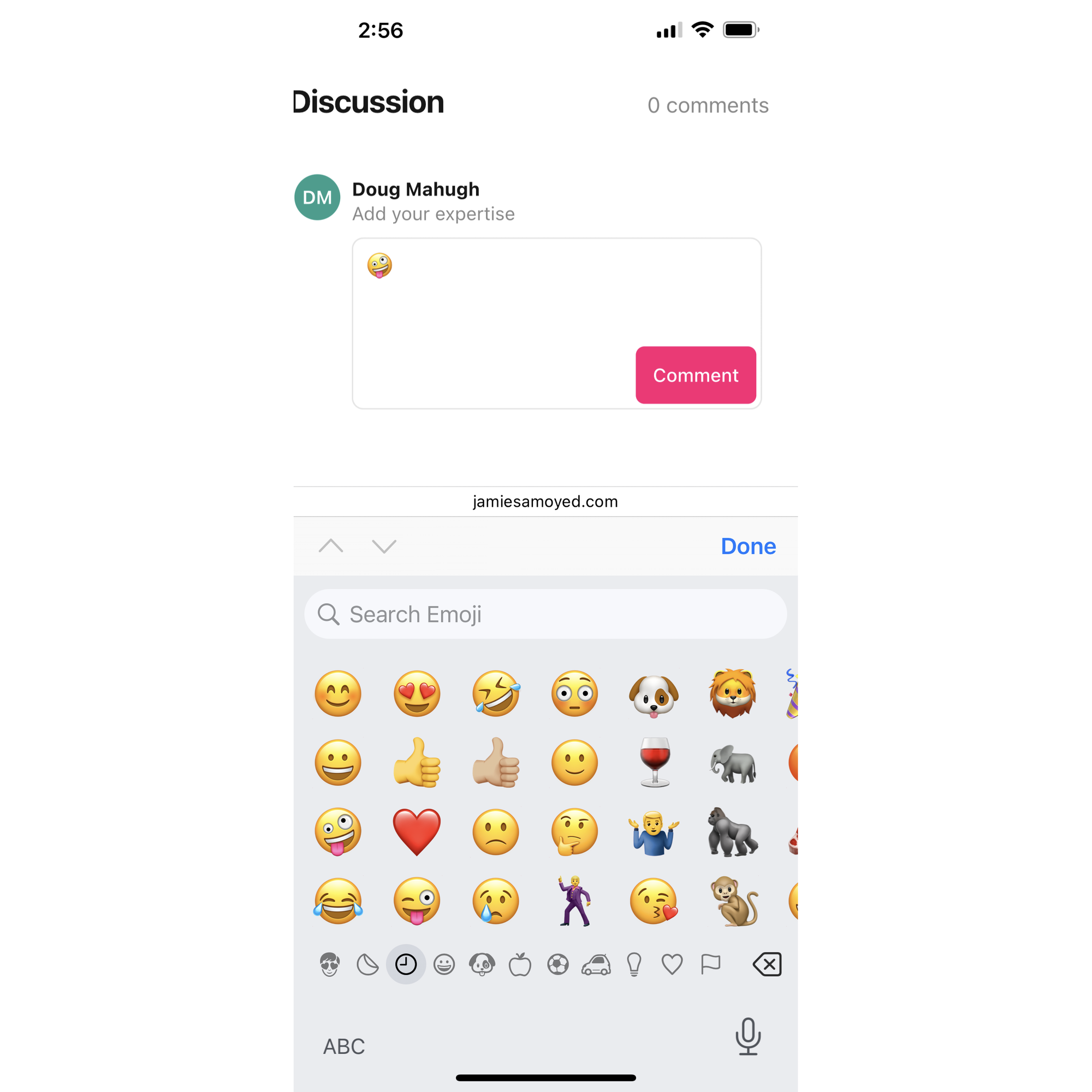
A comment can contain emojis, however, so you can add an emoji to a comment, or post a comment with just an emoji in it if you'd like. Just click the emoji icon on the lower left corner of your iPhone keypad.